Canvas Size Calculator
Calculate the Perfect Coffee-to-Water Ratio for Rich and Balanced Flavor Using Our Free Coffee Brew Ratio Calculator
Table of Contents
- Introduction
- What Is a Canvas Size Calculator?
- Why Canvas Size Matters in Digital Art and Design
- How the Canvas Size Calculator Works
- Understanding Pixel Dimensions — Width and Height
- Resolution (PPI) Explained — What It Means and Why It Matters
- Unit of Measure — Pixels, Inches, Centimeters, and Millimeters
- Color Depth — 8-bit, 16-bit, and 32-bit HDR
- Output Format — Standard Layout vs. Print & Bleed Spec
- Uncompressed File Size — How the Canvas Size Calculator Estimates Storage
- Canvas Size Calculator for Digital Art and Illustration
- Canvas Size Calculator for Graphic Design and Print
- Canvas Size Calculator for Web Design and Social Media
- Common Canvas Size Presets and When to Use Them
- FAQs About Canvas Size Calculator
- Conclusion
Introduction
Setting up the correct canvas size before you start designing or illustrating is one of the most critical — and most frequently overlooked — decisions a creative professional makes. Whether you are a digital artist sketching a character, a graphic designer laying out a print brochure, a photographer editing a portrait, or a web designer building a landing page banner, the canvas dimensions you choose at the start determine everything that follows: image resolution, print quality, file size, and ultimately whether your final output meets its intended purpose.
Starting with the wrong canvas size is a costly mistake. A canvas that is too small for print produces blurry, pixelated results when enlarged. A canvas that is unnecessarily large wastes computing resources, slows down your software, and creates massive files that are difficult to manage and share. The Canvas Size Calculator eliminates both of these problems by giving you precise, accurate canvas dimension data before you ever open your design software.
In this comprehensive guide, you will learn everything about the Canvas Size Calculator — how it works, what each input means, and how to use it confidently for every creative project. Whether you are working in pixels, inches, centimeters, or millimeters, for screen display or print and bleed specifications, this guide will make you a master of canvas sizing.
Never guess your canvas size again — use the Canvas Size Calculator and start every project with complete precision.
What Is a Canvas Size Calculator?
A Canvas Size Calculator is an online tool that helps designers, artists, photographers, and creative professionals determine the exact pixel dimensions, physical size, total megapixels, and uncompressed file size of a canvas based on their specified inputs. It bridges the gap between physical measurements and digital values — converting real-world dimensions (in inches, centimeters, or millimeters) into precise pixel dimensions using the entered PPI (pixels per inch) resolution.
The Canvas Size Calculator takes six key inputs:
- Width Value — The desired width of your canvas (numeric value)
- Height Value — The desired height of your canvas (numeric value)
- Unit of Measure — The unit system: Pixels (px), Inches (in), Centimeters (cm), or Millimeters (mm)
- Resolution (PPI) — The pixel density, typically 72 PPI for screen and 300 PPI for print
- Color Depth — 8-bit (Standard RGB), 16-bit (High Fidelity), or 32-bit (HDR / Float)
- Output Format — Standard Layout or Print & Bleed Spec
From these six inputs, the Canvas Size Calculator instantly outputs:
- Pixel Dimensions (width × height in pixels)
- Physical Width (in both centimeters and inches)
- Physical Height (in both centimeters and inches)
- Total Pixels (expressed in megapixels — MP)
- Uncompressed File Size (in KB or MB)
- Output Format confirmation
This comprehensive set of results makes the Canvas Size Calculator the most complete digital sizing tool available for creative professionals of all levels.
Why Canvas Size Matters in Digital Art and Design
Canvas size is not just a technical setting — it is a fundamental creative and production decision that affects the quality, usability, and versatility of your final artwork. Here is why choosing the correct canvas dimensions matters so deeply:
Print Quality For any artwork intended for physical printing — posters, brochures, business cards, book covers, packaging — pixel dimensions must be large enough to support the required print resolution of 300 PPI. A canvas that is too small in pixels will print blurry and pixelated. The Canvas Size Calculator shows you exactly how many pixels are in your canvas so you can confirm print quality before beginning work.
Screen Display and Web Use For digital content — websites, social media posts, app interfaces, digital ads — canvas size must match the display requirements of the intended platform. A banner that is too wide creates horizontal scrolling; a social media image that is too small appears low-quality on high-density screens. The Canvas Size Calculator helps you nail web-optimized pixel dimensions every time.
File Management and Storage Large canvases with high color depth generate enormous files. A 32-bit HDR canvas at A3 print resolution can easily exceed 100 MB uncompressed. Knowing your uncompressed file size in advance — courtesy of the Canvas Size Calculator — helps you plan storage, backup, and delivery logistics before you commit to a canvas.
Software Performance Working on a canvas that is larger than necessary strains your computer’s RAM, CPU, and GPU. Choosing the right canvas dimensions from the start — calculated accurately by the Canvas Size Calculator — keeps your design software responsive and your workflow efficient.
Scalability and Versatility A canvas sized correctly from the start can be adapted for multiple uses — digital and print — without quality loss. The Canvas Size Calculator helps you choose dimensions that serve all your intended output formats from a single source file.
How the Canvas Size Calculator Works
The Canvas Size Calculator uses a clear, logical calculation process to convert your inputs into a complete set of canvas specifications. Here is the step-by-step breakdown of how the tool calculates each result:
Step 1 — Converting Physical Dimensions to Pixels If you enter your dimensions in inches, centimeters, or millimeters, the Canvas Size Calculator converts them to pixel dimensions using the following formulas:
- Pixels from Inches: Width (px) = Width (in) × PPI
- Pixels from Centimeters: Width (px) = (Width (cm) ÷ 2.54) × PPI
- Pixels from Millimeters: Width (px) = (Width (mm) ÷ 25.4) × PPI
If you enter dimensions directly in pixels, no conversion is needed.
Step 2 — Calculating Total Pixels (Megapixels) Total Pixels = Width (px) × Height (px) This value is then divided by 1,000,000 and displayed in megapixels (MP) — the same metric used to describe camera sensor resolution.
Step 3 — Calculating Uncompressed File Size The Canvas Size Calculator uses the color depth and RGB channel count (3 channels) to calculate the raw, uncompressed file size:
- Bytes per pixel = (Color Depth in bits ÷ 8) × 3 channels
- Uncompressed size = Total pixels × Bytes per pixel
- Displayed in KB (if under 1 MB) or MB (if 1 MB or larger)
Step 4 — Converting Back to Physical Dimensions The tool also displays your canvas’s physical size:
- Physical Width (inches) = Width (px) ÷ PPI
- Physical Width (cm) = Physical Width (inches) × 2.54 (And the same formulas apply to height)
This multi-step calculation process is completed instantly by the Canvas Size Calculator, giving you a comprehensive picture of your canvas in one click.
Understanding Pixel Dimensions — Width and Height
Pixel dimensions are the most fundamental measurement in digital design. Every digital image, artwork, and canvas is ultimately a grid of pixels — tiny squares of color arranged in rows and columns. The width of the canvas tells you how many columns of pixels exist; the height tells you how many rows.
The Canvas Size Calculator accepts width and height values in any supported unit — pixels, inches, centimeters, or millimeters — and converts all entries into pixel dimensions as its primary output.
Why Pixel Dimensions Are the Universal Standard Regardless of what unit you design in, your software ultimately stores and processes everything in pixels. When you export a file, save a JPEG, or send artwork to a printer, the defining measurement is always the pixel dimensions. The Canvas Size Calculator makes this translation transparent and instant.
Common Pixel Dimensions by Use Case:
| Use Case | Width × Height (px) |
|---|---|
| Full HD Screen / Video | 1920 × 1080 |
| 4K Ultra HD | 3840 × 2160 |
| Instagram Square Post | 1080 × 1080 |
| A4 Print (300 PPI) | 2480 × 3508 |
| A3 Print (300 PPI) | 3508 × 4961 |
| Twitter Header | 1500 × 500 |
| Facebook Cover Photo | 820 × 312 |
| Standard Business Card (300 PPI) | 1050 × 600 |
Use the Canvas Size Calculator to verify any of these dimensions — or to calculate custom pixel dimensions for any physical print or screen size you need.
Resolution (PPI) Explained — What It Means and Why It Matters
Resolution is arguably the most misunderstood concept in digital design, and the Canvas Size Calculator makes it completely approachable. Resolution is measured in PPI (Pixels Per Inch) — the number of pixels packed into each inch of physical space in your canvas.
The two most important PPI values to know:
72 PPI — Screen Resolution This is the standard image resolution for digital display — websites, apps, email graphics, social media images, and digital art intended for on-screen viewing only. At 72 PPI, files are smaller and load faster, which is essential for web performance. Enter 72 in the Resolution field of the Canvas Size Calculator for all screen-only designs.
300 PPI — Print Resolution This is the professional standard print resolution for high-quality output — books, magazines, posters, packaging, business cards, and fine art prints. At 300 PPI, the printed dots are so small and densely packed that the human eye perceives smooth, photographic quality at normal viewing distances. Enter 300 in the Canvas Size Calculator for all print work.
Other Common PPI Values:
- 150 PPI — Acceptable for large-format printing (banners, billboards) viewed from a distance
- 200 PPI — Mid-range for brochures and flyers where ultra-fine detail is not critical
- 600 PPI — Used for extremely high-detail technical illustrations or archival fine art prints
The Canvas Size Calculator uses PPI to convert between physical and digital dimensions, ensuring you always know exactly how your canvas will appear when displayed on screen or output to print.
Unit of Measure — Pixels, Inches, Centimeters, and Millimeters
The Canvas Size Calculator supports four units of measure, making it equally useful for digital-first and print-first workflows:
Pixels (px) The native unit of digital design. Use pixels when working on screen-based designs — websites, apps, video graphics, social media, and digital art. Enter your canvas dimensions directly in pixels with no conversion needed. This is the most common unit for web and UI designers.
Inches (in) The standard print measurement unit in the United States and widely used internationally. Use inches when designing for physical print items — letter-size documents (8.5 × 11 in), tabloid prints (11 × 17 in), standard poster sizes, and American standard paper formats. The Canvas Size Calculator converts inches to pixels using your entered PPI value.
Centimeters (cm) The standard print unit in most of the world outside the United States. Use centimeters for European and international print formats — A4 (21 × 29.7 cm), A3 (29.7 × 42 cm), A5 (14.8 × 21 cm), and other ISO paper standards. The Canvas Size Calculator divides cm by 2.54 to convert to inches, then multiplies by PPI for pixels.
Millimeters (mm) The most precise physical measurement unit, widely used in professional print production, packaging design, and engineering. Many professional design specifications are defined in millimeters because of the precision they offer. The Canvas Size Calculator converts millimeters by dividing by 25.4 to get inches, then applies the PPI multiplier.
Whichever unit you work in, the Canvas Size Calculator handles the conversion automatically and shows results in both centimeters and inches in the output panel — giving you cross-unit clarity in every calculation.
Color Depth — 8-bit, 16-bit, and 32-bit HDR
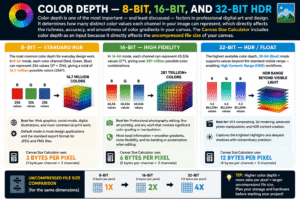
Color depth is one of the most important — and least discussed — factors in professional digital art and design. It determines how many distinct color values each channel in your image can represent, which directly affects the richness, accuracy, and smoothness of color gradients in your canvas. The Canvas Size Calculator includes color depth as an input because it directly affects the uncompressed file size of your canvas.
8-bit — Standard RGB The most common color depth for everyday design work. In 8-bit mode, each color channel (Red, Green, Blue) can represent 256 values (2⁸ = 256), giving a total of 16.7 million possible colors (256³). 8-bit is sufficient for web graphics, social media, digital illustrations, and most commercial print work. It is the default mode in most design applications and the standard export format for JPEG and PNG files.
The Canvas Size Calculator calculates uncompressed file size for 8-bit using 3 bytes per pixel (1 byte per channel × 3 channels).
16-bit — High Fidelity In 16-bit mode, each channel can represent 65,536 values (2¹⁶), giving over 281 trillion possible color combinations. 16-bit color depth is essential for professional photography editing, fine art printing, and any work that involves significant color grading or manipulation. Because tonal information is so much more dense in 16-bit, you can push colors, adjust exposure, and correct gradients without producing visible banding or posterization artifacts.
The Canvas Size Calculator calculates 16-bit uncompressed size using 6 bytes per pixel (2 bytes per channel × 3 channels) — double the size of 8-bit.
32-bit — HDR / Float The highest available color depth, 32-bit (float) mode supports values beyond the standard visible range — enabling High Dynamic Range (HDR) workflows. 32-bit is used for VFX compositing, 3D rendering, advanced photo manipulation, and HDR content creation. It captures both the brightest highlights and deepest shadows with extraordinary precision.
The Canvas Size Calculator calculates 32-bit uncompressed size using 12 bytes per pixel (4 bytes per channel × 3 channels) — four times the size of 8-bit. Understanding this helps you plan storage and hardware requirements before beginning a project.
Output Format — Standard Layout vs. Print & Bleed Spec
The Output Format option in the Canvas Size Calculator reflects the two primary production contexts for any designed canvas:
Standard Layout This is the default output format for the vast majority of digital design projects — web graphics, digital art, screen displays, social media posts, digital presentations, and any canvas that will be viewed on screen rather than physically printed. In Standard Layout, the canvas dimensions represent the exact final output size with no additional margin or bleed.
Print & Bleed Spec This output format is specifically relevant for professional print production. In commercial printing, a bleed is a small extension (typically 3mm or 0.125 inches) added beyond the intended trim edge of a document. This bleed area ensures that background colors, patterns, or images extend fully to the physical edge of the printed piece after trimming — preventing unwanted white borders caused by slight cutting variations.
When to use Print & Bleed Spec:
- Business cards, brochures, and flyers sent to a commercial printer
- Magazine pages and book covers
- Packaging and label design
- Posters and banners with full-bleed backgrounds
When to use Standard Layout:
- Websites and web banners
- Social media graphics
- Digital art and illustrations for screen display
- Presentations and digital documents
The Canvas Size Calculator displays your selected Output Format clearly in the results panel, confirming whether your canvas specification is configured for digital display or print production.
Uncompressed File Size — How the Canvas Size Calculator Estimates Storage
One of the most practically useful outputs of the Canvas Size Calculator is the uncompressed file size estimate. This tells you how much storage space your canvas will occupy when held in your design software’s memory — before any compression is applied.
Why Uncompressed Size Matters When you work on a canvas in Photoshop, Procreate, Affinity Photo, or any professional design application, the software holds the full uncompressed image data in your computer’s RAM. A canvas with a large uncompressed size requires more RAM and processing power, which can significantly slow your workflow if your hardware is not adequately equipped.
Understanding the Calculation The Canvas Size Calculator computes uncompressed size using this formula:
Uncompressed Size = Total Pixels × (Color Depth ÷ 8) × 3 Channels
Practical Examples:
| Canvas | PPI | Color Depth | Uncompressed Size |
|---|---|---|---|
| 1920 × 1080 px | 72 | 8-bit | ~5.93 MB |
| A4 (2480 × 3508 px) | 300 | 8-bit | ~24.9 MB |
| A3 (3508 × 4961 px) | 300 | 8-bit | ~49.8 MB |
| A4 (2480 × 3508 px) | 300 | 16-bit | ~49.8 MB |
| A3 (3508 × 4961 px) | 300 | 32-bit | ~199.2 MB |
Use the Canvas Size Calculator to check your uncompressed size before starting any project, especially if you are working on a device with limited RAM or a tablet with restricted storage.
Canvas Size Calculator for Digital Art and Illustration
Digital artists and illustrators depend on choosing the right canvas dimensions to ensure their artwork looks stunning at every size it will be displayed or printed. The Canvas Size Calculator is an indispensable tool in the digital artist’s workflow.
For Character Illustration and Concept Art Most digital illustrators work at a canvas size of 3000 × 4000 pixels or larger at 150–300 PPI, giving themselves enough resolution to print the work at a reasonable physical size if needed. Use the Canvas Size Calculator to confirm that your chosen pixel dimensions can produce a print of your desired physical size at 300 PPI.
For Webcomics and Sequential Art A standard webcomic panel or page is typically around 800–1200 pixels wide for screen reading, though archival or print-intended files should be 2400 × 3300 pixels or larger. The Canvas Size Calculator helps comic artists balance screen readability with print-ready resolution.
For Pattern Design and Surface Art Repeating patterns for fabric, wallpaper, or wrapping paper require careful canvas sizing to ensure the tile repeats seamlessly at the correct physical scale. Use the Canvas Size Calculator in centimeters or millimeters to define the physical tile size, then confirm the resulting pixel dimensions at your target print resolution.
For Digital Painting and Fine Art Prints Artists selling fine art prints need their canvas to support the largest print size they plan to offer. A 30 × 40 cm print at 300 PPI requires approximately 3543 × 4724 pixels. The Canvas Size Calculator immediately tells you whether your canvas is large enough — no guesswork, no unpleasant surprises at the print stage.
Canvas Size Calculator for Graphic Design and Print
Graphic designers working in print production rely on precise canvas sizing more than any other creative discipline. Incorrect dimensions in a print file can cause reprinting costs, missed deadlines, and unhappy clients. The Canvas Size Calculator eliminates these risks.
For Business Cards A standard business card is 3.5 × 2 inches (approximately 89 × 51 mm). At 300 PPI with bleed allowance, the canvas should be approximately 1050 × 600 pixels. Use the Canvas Size Calculator with inches as the unit and 300 PPI to confirm these dimensions.
For A4 Brochures and Flyers A4 is 210 × 297 mm (21 × 29.7 cm). At 300 PPI, this translates to 2480 × 3508 pixels. Always add a 3mm bleed on all sides for full-bleed print files. The Canvas Size Calculator helps you set up this canvas accurately the first time.
For Large Format Banners and Posters Large format prints are typically designed at 150 PPI rather than 300 PPI because they are viewed from a greater distance. A 1 × 2 meter banner at 150 PPI requires 5906 × 11811 pixels — a massive canvas. The Canvas Size Calculator reveals exactly how large this canvas is in megapixels and MB, helping you assess whether your hardware can handle it.
For Packaging and Label Design Packaging artwork often requires extremely precise dimensions in millimeters. Use the Canvas Size Calculator with millimeters as your unit to match die-cut specifications exactly, then confirm your pixel dimensions and file size for production delivery.
Canvas Size Calculator for Web Design and Social Media
Screen-based design has its own distinct canvas sizing logic, and the Canvas Size Calculator supports web and social media workflows perfectly.
For Website Banners and Hero Images A full-width website hero image is typically 1920 × 1080 pixels — the default input in the Canvas Size Calculator. This is also the resolution of a Full HD (1080p) screen, making it the universal starting point for web backgrounds. At 72 PPI, this canvas is approximately 67.7 × 38.1 cm in physical size — confirming it is a purely digital format.
For Social Media Graphics
| Platform | Recommended Canvas Size |
|---|---|
| Instagram Square | 1080 × 1080 px |
| Instagram Story / Reel | 1080 × 1920 px |
| Facebook Cover | 820 × 312 px |
| Twitter Header | 1500 × 500 px |
| LinkedIn Banner | 1584 × 396 px |
| YouTube Thumbnail | 1280 × 720 px |
Use the Canvas Size Calculator with pixels as your unit and 72 PPI to set up any of these digital canvases quickly and correctly.
For UI and App Design Modern app design often targets specific device screen sizes. Common canvas sizes include 375 × 812 px for iPhone (logical resolution) and 1440 × 900 px for standard laptop web design. The Canvas Size Calculator confirms your pixel dimensions and total megapixel count for any device target.
Common Canvas Size Presets and When to Use Them
Here is a practical reference guide of the most common canvas sizes across creative disciplines, all of which can be verified or calculated using the Canvas Size Calculator:
Digital and Screen Presets
- 1920 × 1080 px (72 PPI) — Full HD screen, YouTube video, web hero image
- 3840 × 2160 px (72 PPI) — 4K ultra HD screen and video
- 1080 × 1080 px (72 PPI) — Instagram square post
- 1080 × 1920 px (72 PPI) — Instagram Story, TikTok, Reels
Print Presets (300 PPI)
- 2480 × 3508 px — A4 document, brochure, flyer
- 3508 × 4961 px — A3 poster, presentation board
- 1748 × 2480 px — A5 flyer, booklet page
- 1050 × 600 px — Standard business card (3.5 × 2 in)
- 2550 × 3300 px — US Letter (8.5 × 11 in)
Large Format Presets (150 PPI)
- 5906 × 3937 px — A0 poster (1189 × 841 mm)
- 4724 × 1575 px — Standard pull-up banner (80 × 200 cm)
Use the Canvas Size Calculator to generate any of these presets or any custom combination — entering your physical dimensions, PPI, and color depth to get the complete specifications in one step.
FAQs About Canvas Size Calculator
Q1. What is a Canvas Size Calculator used for? A Canvas Size Calculator is used to determine the correct pixel dimensions, physical size, total megapixels, and uncompressed file size of a digital canvas. It is essential for designers, artists, and photographers who need to set up their canvas correctly before starting a project.
Q2. What PPI should I use for print projects? Use 300 PPI for all professional print work — brochures, business cards, posters, and fine art prints. Use 72 PPI for screen-only digital work — websites, social media, and digital art. Enter your PPI value in the Resolution field of the Canvas Size Calculator and it will calculate the corresponding pixel dimensions automatically.
Q3. What is the difference between 8-bit and 16-bit color depth in the Canvas Size Calculator? 8-bit color supports 16.7 million colors and is standard for web and commercial print. 16-bit color supports over 281 trillion color values and is used for professional photo editing and fine art printing where smooth gradients and color manipulation are required. The Canvas Size Calculator uses your color depth selection to estimate the uncompressed file size of your canvas.
Q4. How does the Canvas Size Calculator convert centimeters to pixels? The Canvas Size Calculator divides your centimeter value by 2.54 to convert to inches, then multiplies by your entered PPI value to get pixels. For example: 21 cm ÷ 2.54 = 8.27 inches × 300 PPI = 2480 pixels.
Q5. What is the Print & Bleed Spec output format? The Print & Bleed Spec format in the Canvas Size Calculator indicates your canvas is configured for commercial print production, where a bleed extension (typically 3mm) is added beyond the trim edge. This ensures background colors and images extend fully to the physical edge after cutting, preventing unwanted white borders.
Q6. What does “Uncompressed File Size” mean in the Canvas Size Calculator results? The uncompressed file size is the raw storage space your canvas occupies in memory — before any file compression is applied. It is calculated from total pixels × bytes per pixel (based on color depth × 3 RGB channels). This value tells you how much RAM your design software will use while the file is open.
Q7. What is the best canvas size for Instagram posts? The recommended canvas size for an Instagram square post is 1080 × 1080 pixels at 72 PPI. For Instagram Stories and Reels, use 1080 × 1920 pixels. Enter these values directly into the Canvas Size Calculator with pixels as the unit to confirm total megapixels and file size.
Q8. Can I use the Canvas Size Calculator for 4K video graphics? Yes. Enter 3840 × 2160 in the width and height fields, select Pixels as the unit, and set 72 PPI. The Canvas Size Calculator will confirm your pixel dimensions, total megapixels (approximately 8.3 MP), and uncompressed file size for your 4K canvas.
Q9. Why does my large-format canvas show such a big uncompressed size? Large canvases at high print resolution (300 PPI) with high color depth (16-bit or 32-bit) naturally produce very large files. The Canvas Size Calculator shows you this in advance so you can plan your hardware, storage, and delivery method accordingly — and decide whether to reduce resolution or color depth if the file size is unworkable.
Q10. Can the Canvas Size Calculator handle millimeters as a unit? Yes. Select Millimeters (mm) from the Unit of Measure dropdown, enter your canvas dimensions in mm, and the Canvas Size Calculator will convert to pixels using the formula: pixels = (mm ÷ 25.4) × PPI. This is especially useful for packaging design and professional European print specifications.
Conclusion
A perfectly sized canvas is the foundation of every great design project — and the Canvas Size Calculator gives you that perfect foundation in seconds. Whether you are preparing artwork for a website banner, a full-bleed print poster, a social media graphic, or a fine art print, this powerful tool delivers the complete set of specifications you need before you begin: pixel dimensions, physical size, total megapixels, uncompressed file size, and output format — all from a single, straightforward calculation.
The days of guessing canvas sizes, discovering resolution problems after hours of work, or discovering your print file is too small only when it is too late — those days are over. The Canvas Size Calculator puts professional-grade precision in the hands of every creative, regardless of experience level.
Here is what you should take away from this complete guide:
- Pixel dimensions are the universal language of digital design — always verify them with the Canvas Size Calculator
- Use 72 PPI for screen and web designs; use 300 PPI for all professional print work
- The Unit of Measure option supports pixels, inches, centimeters, and millimeters — covering every design workflow
- 8-bit color is standard for most work; choose 16-bit or 32-bit only when your project demands it
- The uncompressed file size output helps you plan hardware, storage, and delivery before committing to a canvas
- Standard Layout suits digital output; Print & Bleed Spec confirms your canvas is print-production ready
- The Canvas Size Calculator is free, instant, and requires no software installation
Use the Canvas Size Calculator at the beginning of every single project — before you create a new document in Photoshop, Procreate, Affinity, Illustrator, or any other design tool. Two minutes with this tool will save you hours of frustration, rework, and reprinting costs.
Precision is not a luxury in design — it is a habit. And the Canvas Size Calculator makes that habit effortless.